Back up NAS photos to Google Photos using Pixel XL without explicitly copying files
I recently purchased a used Pixel XL to take advantage of the free unlimited Google Photos backup at the original quality. However, I faced a challenge when trying to back up a large collection of photos stored on my NAS. The simplest solution is apparently to copy all photos to the phone’s internal storage, let Google Photos back them up, and then delete them from the phone. However, this approach raises concerns about the longevity of the phone’s storage due to the large amount of data being written and deleted. (Though if you do the math, backing up a total 5TB of data will only cause about 10% wear of the eMMC. Still I would like to avoid unnecessary wear and tear.)
Warning: This method is slooooow if you have a large SMB share. Be patient.
This guide was inspired by a comment on a blog.
Prerequisites
- A Pixel or Pixel XL device. You do not have to the original owner.
- A NAS with SMB share enabled.
- You are ok with rooting your Pixel device. This is the only way to mount network shares as internal storage, which is required for Google Photos to see and process the files.
Steps
1. Root your Pixel device
Root your Pixel device using Magisk. If you have ever rooted an Android device before, you must have heard of Magisk. (Hey, I still miss the days that it was more of an obligation to root Android devices.) Just follow the official Magisk installation guide. Not gonna lie, after a solid 6 years using non-rooted Android devices, I had to spend some time to get familiar with the process again. Many things did not change, but lots of stuff is not the same as before.
2. Install the rclone-mount module
After you have the device rooted, we need to install a Magisk module called
rclone-mount. This module allows you to mount network shares
using rclone, which supports SMB protocol. There is a fork of the repo called
rclone-mount-magisk, which appears to be the top result if
you google “magisk rclone mount”. DO NOT use that. Its bundled rclone binary
is too old and does not support SMB mounts.
Now, here is the tricky part. The repo has been abandoned and archived for years and there were no tags for newer releases. I suppose it (as a part of the official Magisk module repo) was released through the module manager, but it was gone due to legal concerns.
Luckily, the og pixel has been abandoned by Google as well, so the archived codes still work fine. Here is how you can get a functional version of the module.
-
Get the repo (master branch) through a method you like. Note that if you use the “Download ZIP” button on GitHub, you will get a ZIP file that contains one more level of directory
com.piyushgarg.rclone-master, which will need to get rid of. -
Anyway, we have the folder now. You can choose to remove the readme and changelog files if you want, but all the rest are essential for the module.
-
Modify the installation script
install.shfile to create an additional symlink and use latestrclonebinary.-
Optionally replace the download links in the following block for
arm64, as we will only use this for our Pixel.if [ "$ARCH" == "arm" ];then ui_print "+ downloading rclone-$ARCH to $MODPATH/rclone" curl "https://beta.rclone.org/test/testbuilds-latest/rclone-android-16-armv7a.gz" | gunzip -d - > "$MODPATH"/rclone elif [ "$ARCH" == "arm64" ];then ui_print "+ downloading rclone-$ARCH to $MODPATH/rclone" curl "https://beta.rclone.org/test/testbuilds-latest/rclone-android-21-armv8a.gz" | gunzip -d - > "$MODPATH"/rclone elif [ "$ARCH" == "x86" ];then curl "https://beta.rclone.org/test/testbuilds-latest/rclone-android-16-x86.gz" | gunzip -d - > "$MODPATH"/rclone elif [ "$ARCH" == "x64" ];then curl "https://beta.rclone.org/test/testbuilds-latest/rclone-android-21-x64.gz" | gunzip -d - > "$MODPATH"/rclone fiReplace
https://beta.rclone.org/test/testbuilds-latestwithhttps://beta.rclone.org/v1.72.0/testbuildsorv1.71.0. I have tested them myself. While the current latest build works, you will never know if it will break in the future. -
In the following block, we need to link
fusermounttofusermount3as well.set_permissions() { # The following is the default rule, DO NOT remove set_perm_recursive $MODPATH 0 0 0755 0644 set_perm $MODPATH/rclone 0 0 0755 set_perm $MODPATH/fusermount 0 0 0755 set_perm $MODPATH/fusermount-wrapper.sh 0 0 0755 set_perm $MODPATH/service.sh 0 0 0755 set_perm $MODPATH/rclonew 0 0 0755 set_perm $MODPATH/syncd.sh 0 0 0755 set_perm $MODPATH/inotifywait 0 0 0555 ln -sf $MODPATH/rclone /sbin/rclone ln -sf $MODPATH/rclonew /sbin/rclonew ln -sf $MODPATH/fusermount /sbin/fusermount ... }Add the following line after the last
ln -sfline.ln -sf $MODPATH/fusermount /sbin/fusermount3
This should allow us to mount the SMB share without issues.
-
-
Modify
common/service.shto create thefusermount3symlink every time the module is started. Add the following line after the existingln -sflines in the middle of the file.ln -sf ${HOME}/fusermount /sbin/fusermount3 -
Zip the folder to a ZIP file. Make sure the contents of the repo is directly in the root of the ZIP file, so the top level is directly
install.sh,binary, etc. -
Transfer the ZIP file to your Pixel device and install it through Magisk.
3. Configure and mount the SMB share
The file we need to create/modify is /sdcard/.rclone/rclone.conf. Here is my
config file. You can create the file on the computer through rclone config
[DeepDarkFanta]
type = smb
host = deepdarkfantasy.lan
user = username
pass = password
The section DeepDarkFanta is the SMB share connection. DeepDarkFanta is the
name of the connection, so you can name it whatever you want. Replace
deepdarkfantasy.lan and username with your NAS’s IP address or hostname and
username when running rclone config. rclone will also ask yor password and
store it in the config file encrypted.
With this, rclone will mount all the SMB shares of you NAS to
/mnt/cloud/connection_name. We do not want to mount everything as internal
storage, so the next step is crucial. For example, all my photos are stored in
the SMB share called photo. We will create an alias remote that only points to
that share.
[ddf_photos]
type = alias
remote = DeepDarkFanta:photo
Now, rclone will mount only the photo share to /mnt/cloud/ddf_photos,
alongside with everything under /mnt/cloud/DeepDarkFanta.
Till now, the mount will not be recognized as internal storage by Android. We need to add a configuration file to mount it as internal storage and tune the performance.
M_GID=1015
BINDSD=1
SDBINDPOINT=nas_photos
LOGLEVEL=NOTICE
DIRCACHETIME=1000h0m0s
ATTRTIMEOUT=24h0m0s
BUFFERSIZE=36M
READCHUNKSIZE=256M
READAHEAD=4M
ADD_PARAMS="--read-only --transfers 8 --checkers 16"
-
M_GID=1015: This is the GID of themedia_rwgroup on Pixel XL. This group has permission to read and write media files. You can check the GID on your device throughls -l /dev/block/platform/*/by-name/. -
BINDSD=1andSDBINDPOINT=nas_photos: This will mount the SMB share to/sdcard/nas_photos, which is required for Google Photos to see the files. -
The rest are performance tuning options. You can tweak them as you like, but increasing
DIRCACHETIME,BUFFERSIZEandREADCHUNKSIZEshould help with indexing the huge folders. Also, I mounted the share as read-only to prevent any accidental deletion of files. This should be an upload-only setup.
Note: If the param file is created on Windows, the Carriage Return (CRLF)
will break the rclone script. Make sure to convert the line endings to Unix (LF)
format. If you have termux installed, you can use sed to globally remove the
CRLF characters.
sed -i 's/\r//g' /sdcard/.rclone/.your_remote_name.param
After all these, reboot your device. If everything goes well, you should see a
new folder /sdcard/nas_photos that contains all your NAS photos. Give Google
Photos sometime to realize this folder is an internal media folder and it will
start to index and back up the photos automatically. The indexing process can
take weeks (I have some dozens of thousands of photos and it is still going on
after a full week of continuous processing), so be patient.
I found that disabling battery optimization for Google Photos and keeping the screen on while charging help speed up the process. However, the will get very hot doing so, so I used my spare Thermalright Phantom Spirit as a passive cooler, which is extremely effective. The cold plate does not even get warm.
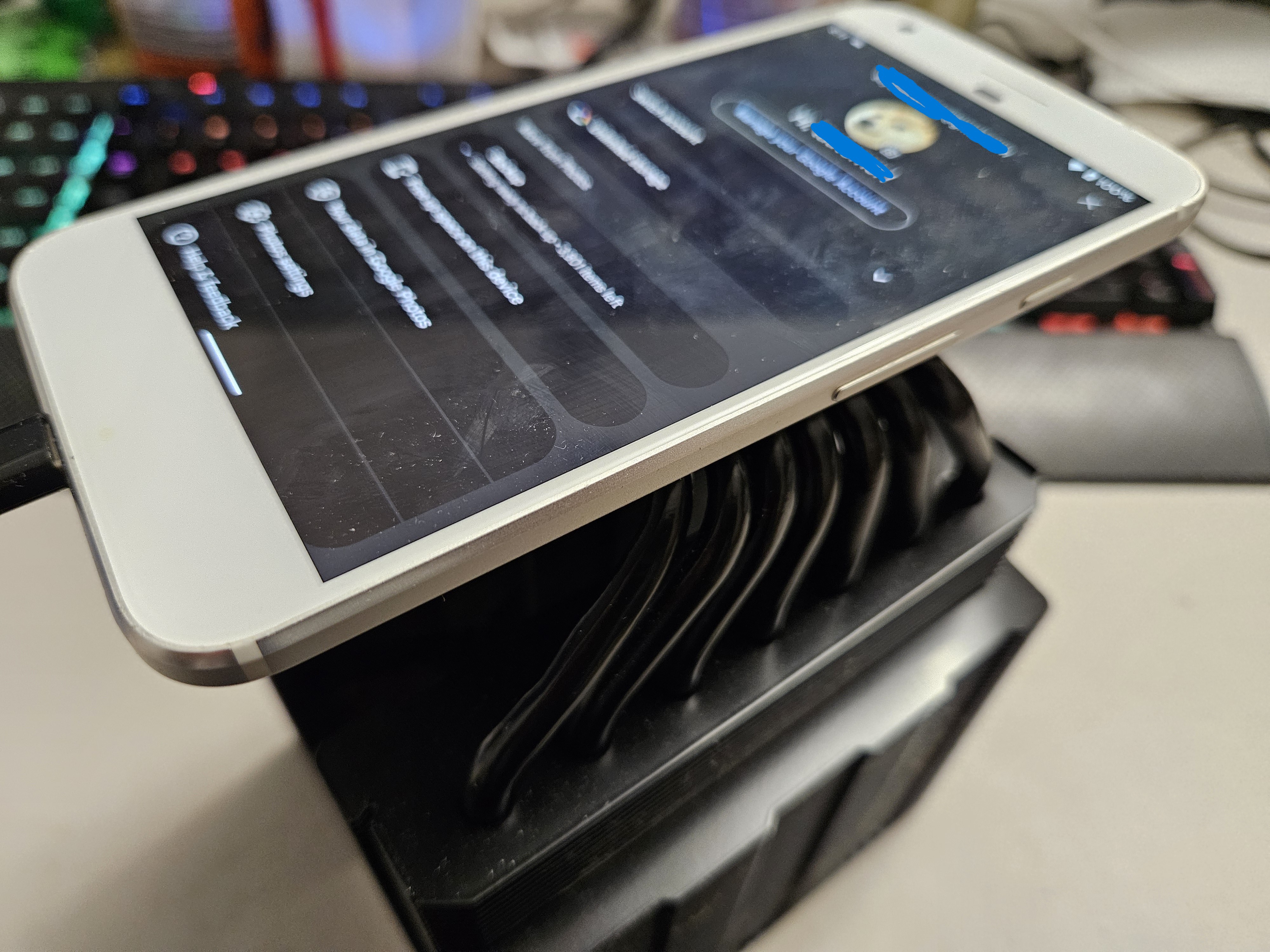
Sometimes when things are really stuck, you can try to kill the app and restart.
Originally published on December 8, 2025.Home Lab Self-hosted Photography NAS